Dedicated mobile devices
Definition of dedicated mobile devices - devices working with AMAGE Fx or AMAGE CE application on dedicated devices. Possibility to work in offline mode. The device list allows you to define devices and configure them.
After entering the main menu of the Mobile → Devices configuration, a list of all defined mobile devices is presented. Adding a new device is done by selecting the (+) action.
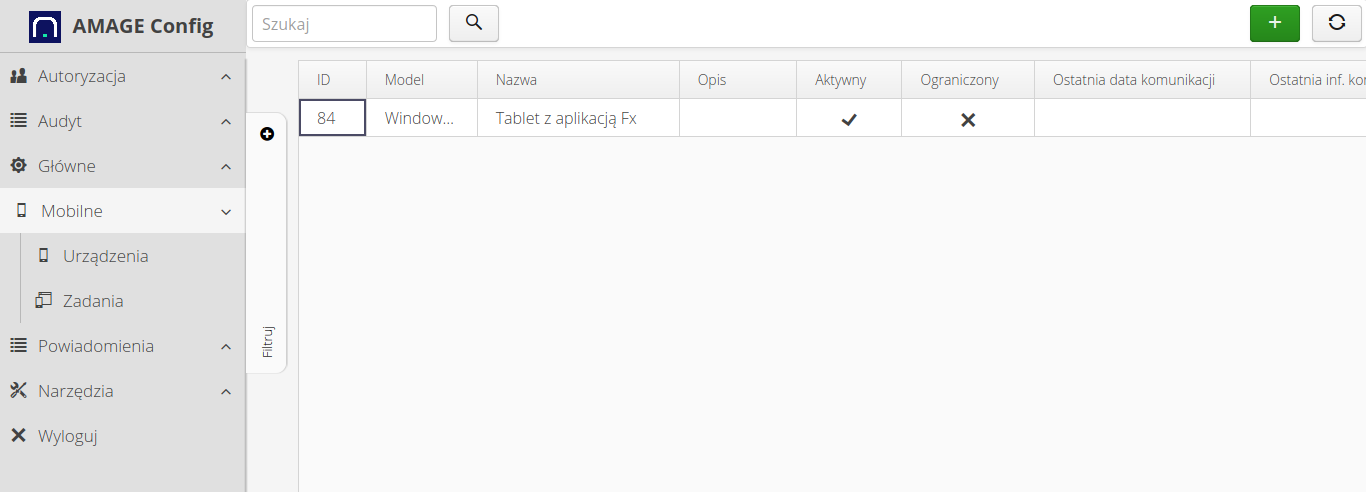
The definition of a new mobile device allows you to specify its parameters and settings.
-
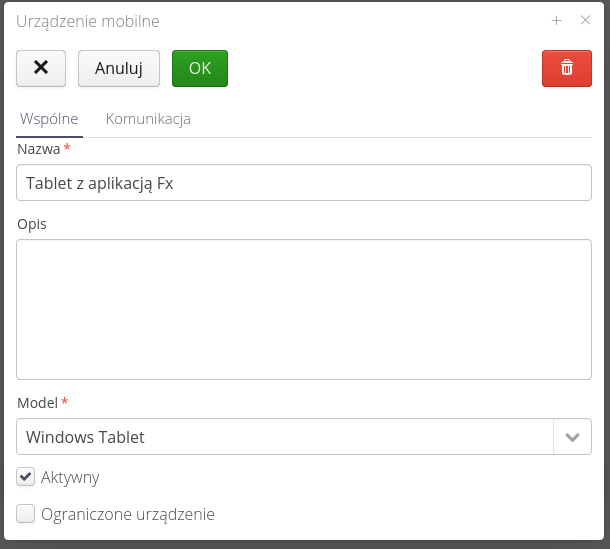
Name - the general name of the device visible in the summaries
-
Description - additional description of the device, e.g. owner, etc.
-
Model - the device model that is supported. In the case of the AMAGE Fx application, select
Windows Tablet, in the case of the PVD application, selectData Aggregator -
Active - whether the device is active, i.e. whether we accept communication from this device
-
Restricted device - when this flag is enabled, only mobile tasks that have been explicitly assigned to this device are visible through it.
| The restricted device flag is intended to allow you to specify a detailed mobile task along with a slice of the data that is being synced for that device. This makes sense in the case of devices that are handed over to, for example, subcontractors or contractors to perform specific activities, e.g. inspections. In this case, we ensure that a given mobile device will only receive the information that we assign to it. |
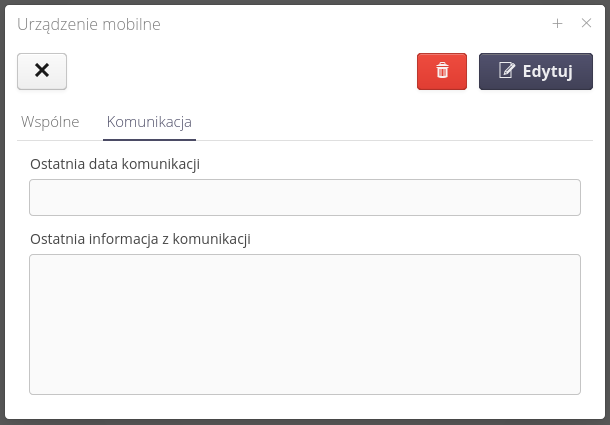
The technical information tab stores information from the PVD application regarding the last date of communication and the last information regarding communication with this device. This facilitates possible diagnostics.
Pola ostatniej daty komunikacji i informacji o komunikacji uzupełniane są automatycznie dla każdego urządzenia (niezależnie od modelu) po dowolnym poprawnie obsłużonym wywołaniu interfejsu synchronizacji offline sync/v1. Urządzenie identyfikowane jest po kluczu API użytym do autoryzacji zapytania, a w informacji zapisywana jest ścieżka wywołanego interfejsu. Zapis odbywa się okresowo — nie częściej niż raz na minutę dla danego klucza API — dzięki czemu częste zapytania synchronizacji nie obciążają bazy danych.
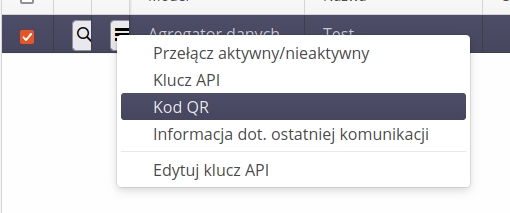
After adding a device, additional options appear in the context menu of the tabular view:
-
Toggles active/inactive - enables/disables communication with the device
-
API key - displays the API key data. This gives you the opportunity to copy this data and enter it, for example, in the data aggregator in its configuration
-
QR code - displaying the QR code with the configuration data of this device. The AMAGE Fx and AMAGE CE Lite applications have the ability to scan this code and automatically configure it based on the data contained therein.
-
Information on last communication - displays communication details in an additional window. This allows you to view the data in a larger view.
-
Edit API key - allows you to edit the API key associated with a given device.
| Each mobile device, at the time of its creation, also automatically creates one pair of API key data, which is used to authorize queries between the device and the server. For more information about API keys, see the configuration documentation. |
Tasks for mobile devices
The definition of tasks/data ranges for dedicated mobile devices allows you to specify the data range so that they work only on a separate part of them. The interface allows you to control the data sent from such devices. In the case of devices working offline, it is not possible to synchronize the entire main database due to its size. In this case, the logic of mobile tasks was created. They fulfill two roles:
-
Define what data is to be sent in this task to the mobile device
-
Storing information sent from mobile devices before their integration with the main database (changelog).
In the configuration view in the Mobile section, we have access to mobile tasks through the Tasks action. After selecting it, we are presented with a list of mobile tasks and their statuses.
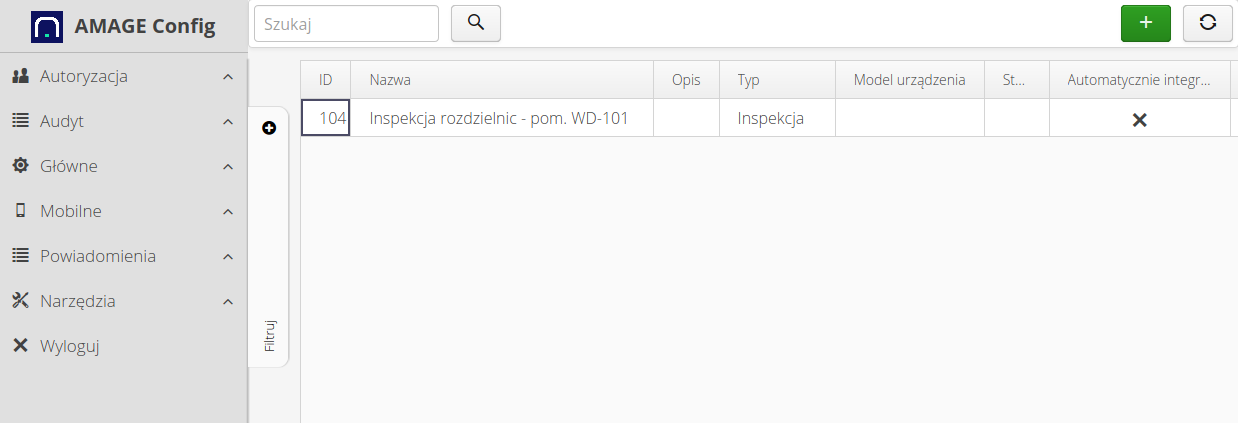
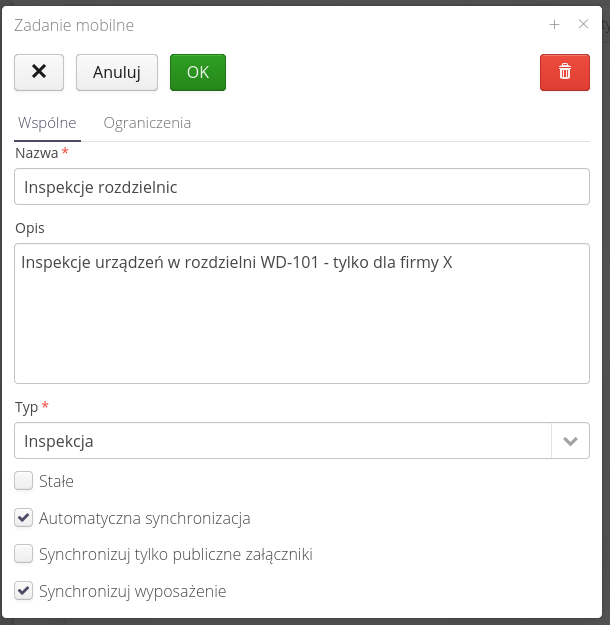
We can create a mobile task using the + button, editing is available directly from the list of tasks. When creating/editing tasks, we can specify the basic data:
-
The name - task name - will be displayed on mobile devices
-
Description - detailed description of the task
-
Type - task type - general, inspections, rounds
-
Status - the current status of the job registered, available, on device, returned, closed, canceled, permanent
| Depending on the task type, it is displayed on specific devices. For example, the AMAGE CE Lite application supports only 'Supervision' tasks. |
Additional task flags allow for additional control:
-
Permanent task - the task will not change its state after being received from a mobile device. This allows you to keep this task always available for mobile devices.
-
Automatic synchronization - automatically synchronize data sent from a mobile device to a central database
-
Synchronize only public attachments - during synchronization, if the user requests attachments/files associated with objects, only files with the
Publicflag will be sent. A useful option when transferring the device to an external subcontractor/customer, etc. -
Synchronize equipment - during task synchronization, resources of the 'Equipment' type will also be sent to the device. Useful for performing remote offline inspections. In this case, we can also choose, for example, a measuring device with which the inspection is performed.
In the second tab of the mobile task, information about the limitations of the given mobile task is available.
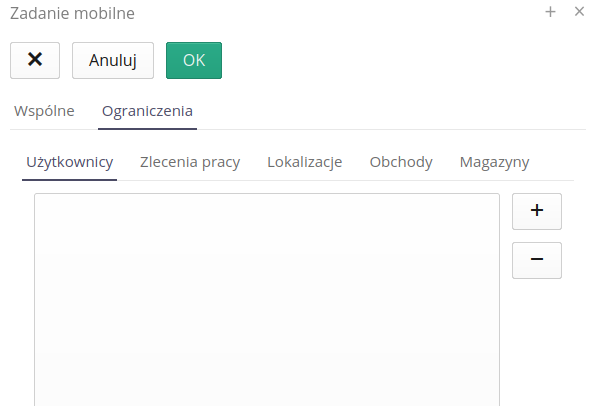
Restrictions may apply to the list of users uploaded to the device, resources from only selected locations, only specific work orders and their associated objects, and others according to the list.
-
Users
-
Locations
-
Work orders
-
Inspection rounds
-
Warehouses
The system tries to intelligently select the transmitted data in accordance with the selected parameters. For example, selecting location A will allow you to send to the mobile device all devices/resources in this location AND child locations (places/rooms).
|
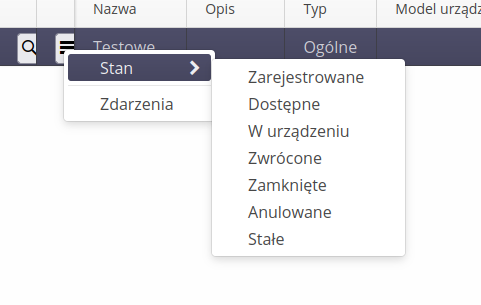
For each task we have a context menu with actions available:
-
State change - an explicit change of the state of a given task. Usually, the status change is carried out automatically by the communication process, e.g. after sending the completed task, the mobile device automatically changes the status of the task to ready for integration.
-
Task events - view of task events
Mobile task event
Each task as described above also serves as a storage for data sent by mobile devices. When working offline, mobile devices perform work and create new entries completely separate from the central system. So-called change logs (journals) are created on the mobile device. They define what has been changed/created outside of the central database.
During synchronization, this data is sent back to the central system and the system updates the data in the central database based on this change log. This is necessary because the central system must ensure the uniformity of data in the central database. One example of such troubleshooting is updating a record that has been deleted from the central database by, for example, another device while working offline. In this case, the data sent from the mobile device must be properly processed.
The mobile task event view shows exactly these data packets sent by mobile devices along with detailed data. The list is divided into two sections. The first is the individual communication and the second is the content of the log sent in each communication.
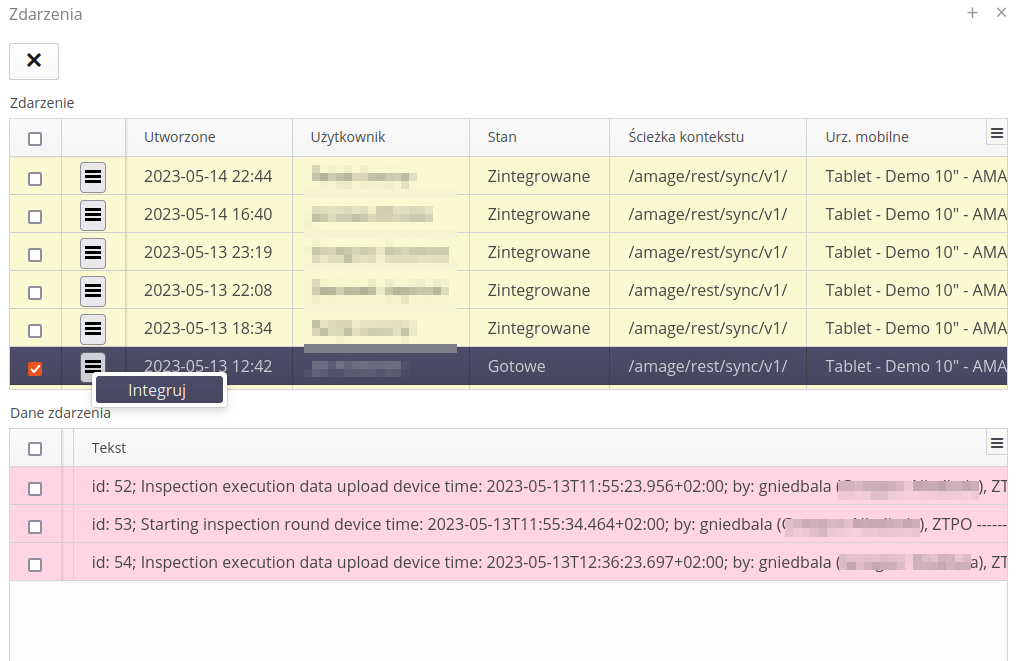
The system automatically integrates all the data that is possible for such an operation. Events that have any problems can be updated on their own using the action available in the context menu of the selected event. After successful integration, the system changes the status of the event to 'Integrated'.